
Keep your agents on task and your projects on track.
MaximizePM allows you to focus your attention at the right place at the right time. It organizes your tasks so that you are not causing your agent team to wait for you longer than necessary.
It also allows you to unblock your agents, monitor that they’re doing the right things, track the progress of multiple tasks, assign tasks to agents that have the proper context, and keep work flowing.
Free, for Macs (Apple silicon and Intel) and Windows. Apple and Microsoft haven’t verified it yet, so the first open takes a few extra clicks.
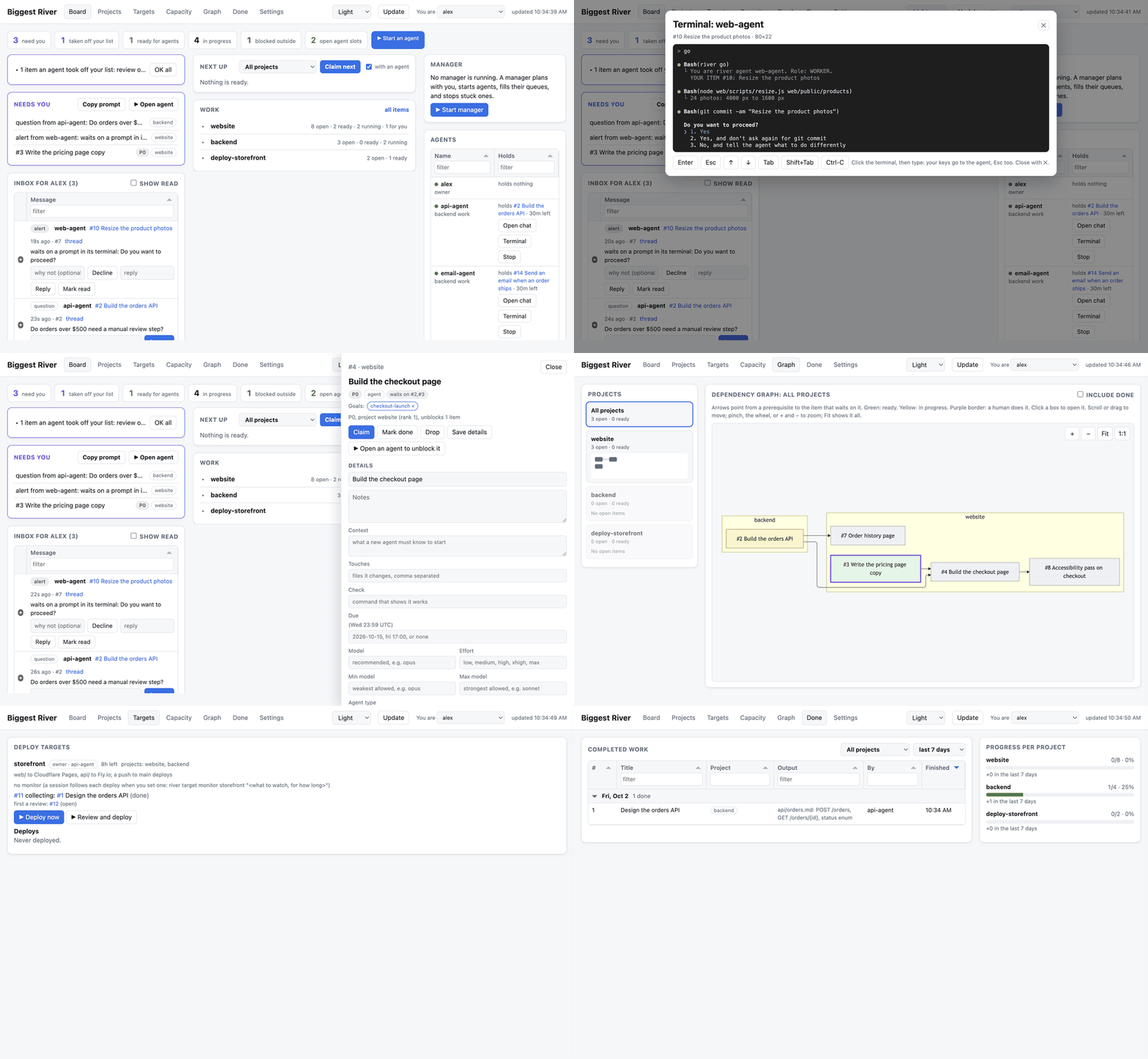
Five agents, one plan, and a lot of chaos
Using multiple coding agents to build multiple complex projects at the same time requires a lot of discipline and a lot of time. There are significant problems with context switching, with managing multiple agents at the same time, with handling the steps that you need to do yourself, and with keeping the agents unblocked. And you don’t want them to unblock themselves in the wrong way.
So if you want to juggle multiple projects at the same time, you need a multi-project task management system that distributes tasks to as many agents as makes sense, alerts you when they’re blocked, alerts you when there are items that you own, and keeps you as organized as possible without spending all of your time thinking about organization.
Running one coding agent is easy. Running five gets messy fast:
- Two of them start editing the same file.
- One builds on top of something that isn’t finished yet.
- One has been stuck for an hour waiting on you, and you didn’t notice.
- You can’t tell whether opening another session would help or just add noise.
MaximizePM keeps the plan in one place that you and every agent can see and update.
Building is the easy part now
With agents, a feature can go from idea to done in an afternoon. The hard part is everything around it: deciding what to build, getting agents working on it, and checking what they made.
MaximizePM makes that simple.
- Start from what you want. Type “plan” and an agent works out the goal with you: what you’re after, and how you’ll know it’s done. Then it breaks it into tasks.
- One click, one agent. Every feature, fix, or goal is a task on the list. Click “Start an agent” on the dashboard, or type “go” in any terminal, and a fresh agent picks up the next task that’s ready.
- Stay in the flow. Think of something mid-build? Add it and keep going. It won’t get lost, and it starts on its own once whatever it’s waiting on is done.
- Agents pass work along too. When an agent runs into something that’s in its way, or spots something that would be nice to have, it doesn’t cram it into what it’s doing. It adds it to the list, and the next free agent picks it up.
- Review what got done. Every finished task says what changed and which commit it’s in. Turn on review, and nothing ships until an agent has checked the whole release against your project’s own checklist: things to check, and commands that have to pass. Anything that fails goes back on the list as a fix, and the review runs again after that. Want the final say yourself? Add an approval step, and the release waits for your yes.
No boards to tidy up and no statuses to update by hand. The agents keep the list current as they work.
How it works
Write down the work
Add tasks and note which ones depend on which, even across projects. Flag the ones only you can do, like creating an account or signing off on copy. Or just type “plan” and an agent will break a goal into tasks with you.
The important stuff rises to the top
If a tiny fix is holding up your launch, MaximizePM treats it like launch work. You never have to re-sort the list by hand.
Tell an agent “go”
The agent runs maxpm go, picks up the most useful task it can do right now, and gets a short brief: what to do, which files it’ll touch, and how to check the result.
When an agent finishes a task, it grabs the next one right away and keeps going until the list is empty or it needs you. If an agent crashes or you close its terminal, its task goes back on the list after a while. Agents can leave each other notes and questions.
What an agent does after “go”
| Role | What happens |
|---|---|
| Worker | There’s work ready, so it does it. |
| Unblocker | Nothing’s ready here, so it clears whatever is in the way. |
| Planner | The project is just a goal so far, so it breaks it into tasks. |
| Owner | It owns a goal, so it plans the tasks that get there, takes them, and clears whatever’s in the way. |
| Reviewer | A release is about to go out, so it checks everything in it first. |
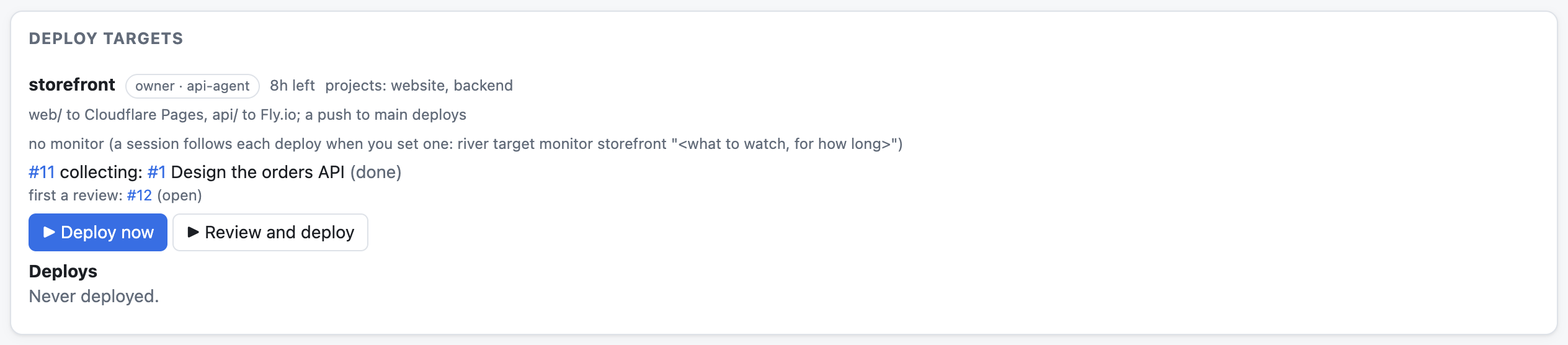
| Deployer | Finished work is waiting to go out, so it ships it. |
| Idle | Nothing can move right now. MaximizePM tells you, so you can close the session. |
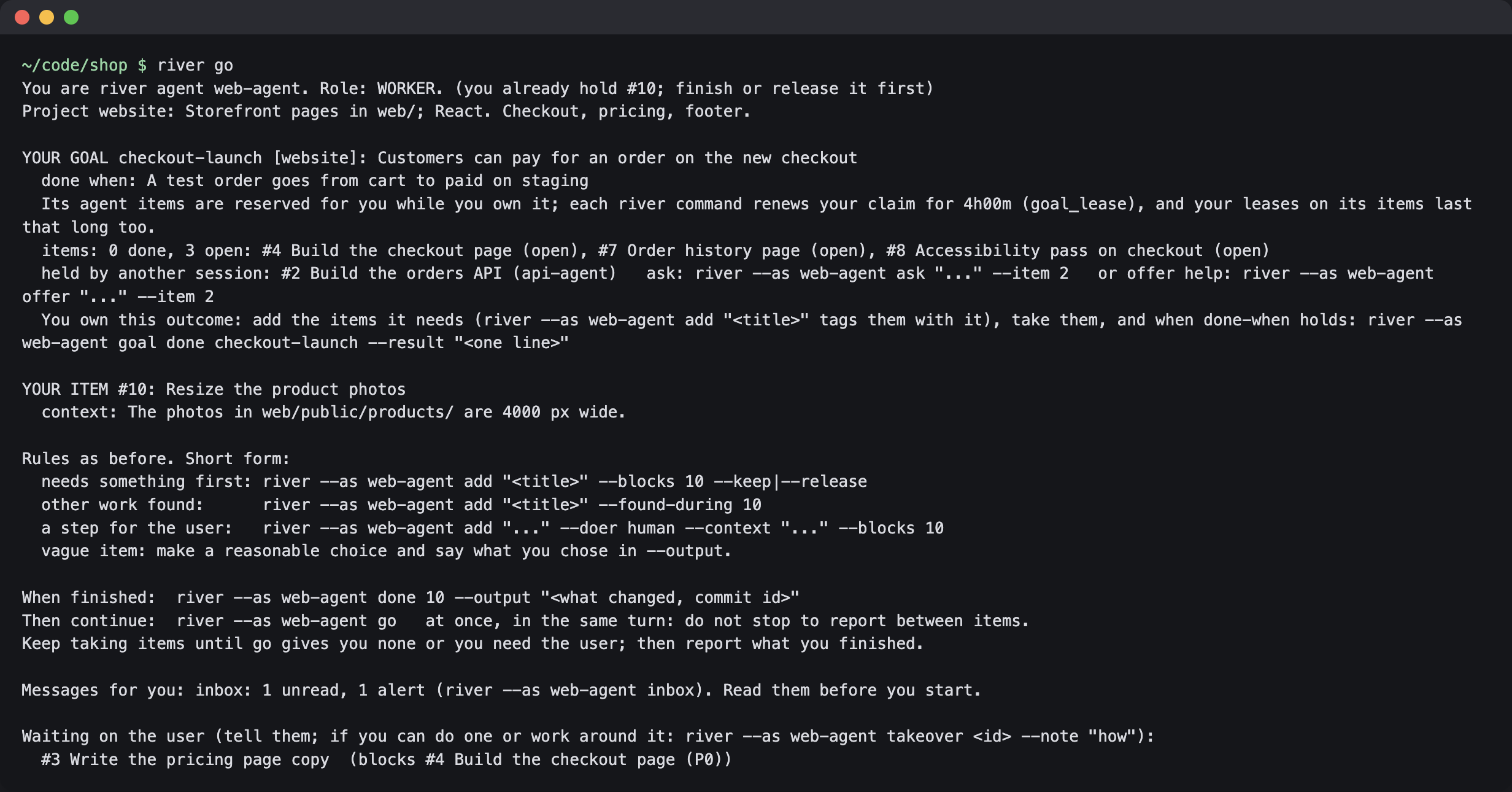
go.When an agent gets stuck
Agents don’t just sit there when they hit a wall.
- It needs something done first. If it’s small, the agent does it and goes right back to its task. If it’s big, the agent puts its task back and the new piece goes on the list for whoever’s free.
- Another agent has the piece it needs. It can offer to help. The other agent can hand the task over, or split it into smaller pieces anyone can pick up.
- It’s waiting on the outside world, like a DNS change or a reply that won’t come until Monday. Mark the task blocked until then, and it comes back on the list by itself when the time comes.
- It’s waiting on a yes from you in its terminal, like a permission prompt. If your agents run in tmux (they do whenever tmux is installed), MaximizePM notices, puts it on your Needs you list, and pings you. Click Terminal and you can read the prompt and answer it right there on the dashboard.
Stuff only you can do
Some steps need a person: making an account, paying for something, saying yes to a draft. Those go on your Needs you list, most important first. MaximizePM can tell you about them on your phone (through the ntfy app), by email, with a Mac notification, or in your browser. Pick whichever you like.
Every item on that list has a Copy prompt button. Paste it into a fresh agent and it’ll walk you through the step, and it’ll ask before it touches your accounts or money. And if an agent figures out how to do one of your tasks itself, it can take it off your list. You get a heads-up, and one click puts it back.


Already using Jira, GitHub Issues, or Linear?
Keep using it. Your agents will keep it up to date.
Tell MaximizePM once which tracker a project uses, like “GitHub acme/shop via gh” or “Jira via the Jira MCP server.” When you type “plan”, the agent pulls in the open issues MaximizePM doesn’t have yet and links each task to its issue. When an agent picks up one of those tasks, it marks the issue in progress. When it’s done, it posts what changed as a comment and closes the issue.
MaximizePM doesn’t connect to your tracker itself, so there’s nothing to set up or pay for. Your agents do the updating with the tools they already have, like the gh command or an MCP server. MaximizePM keeps the links and reminds them, and if one forgets, the task says “tracker not updated” until it’s fixed.
See everything at a glance
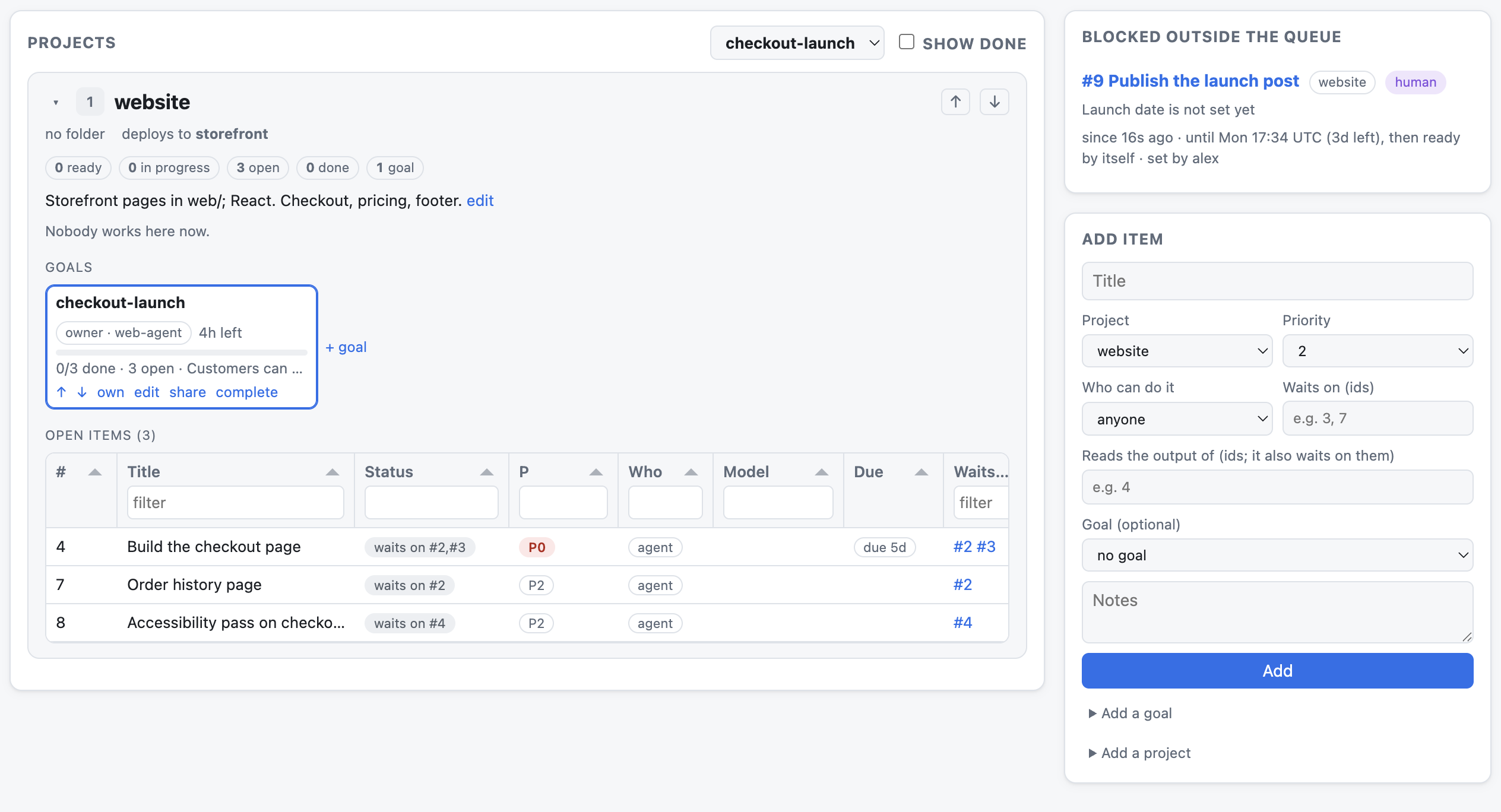
Open the app (or run maxpm serve) and you get a dashboard. It shows:
- What’s next, and why it’s at the top.
- How many more agents you could put to work right now, and a heads-up when some are sitting idle.
- Who’s working on what, and what’s waiting on what.
- Everything waiting on you, in one place.
- Your goals, who owns each one, and how far along it is.
- What’s going out next, and whether its review has passed.
- A Start an agent button that opens a new agent in a terminal, ready to work.
- Hand a task to a specific agent, like the one that already knows that code.
- What got done, on the Done tab.
Prefer the terminal? maxpm status gives you the same overview, and maxpm log shows what’s been finished.
Tired of hunting through terminal tabs? If you have tmux installed, MaximizePM starts every agent in it, no setup needed. Then maxpm view shows them all side by side in one terminal, and each agent gets a Terminal button on the dashboard, so you can check on it or type to it without leaving the page. Rather have tabs? Run maxpm config set launch_in tab.
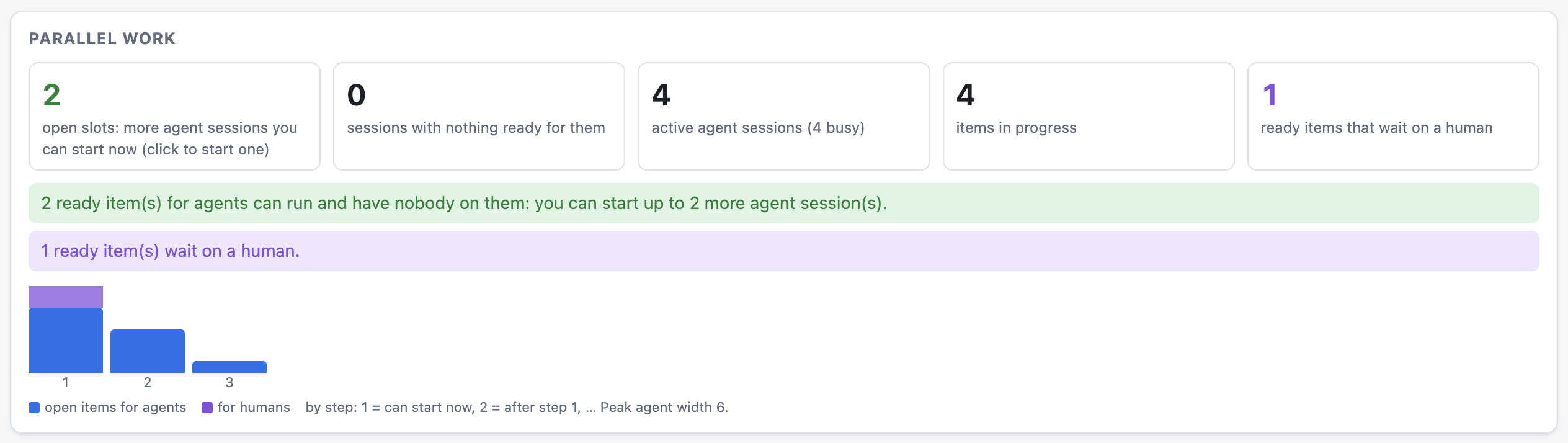
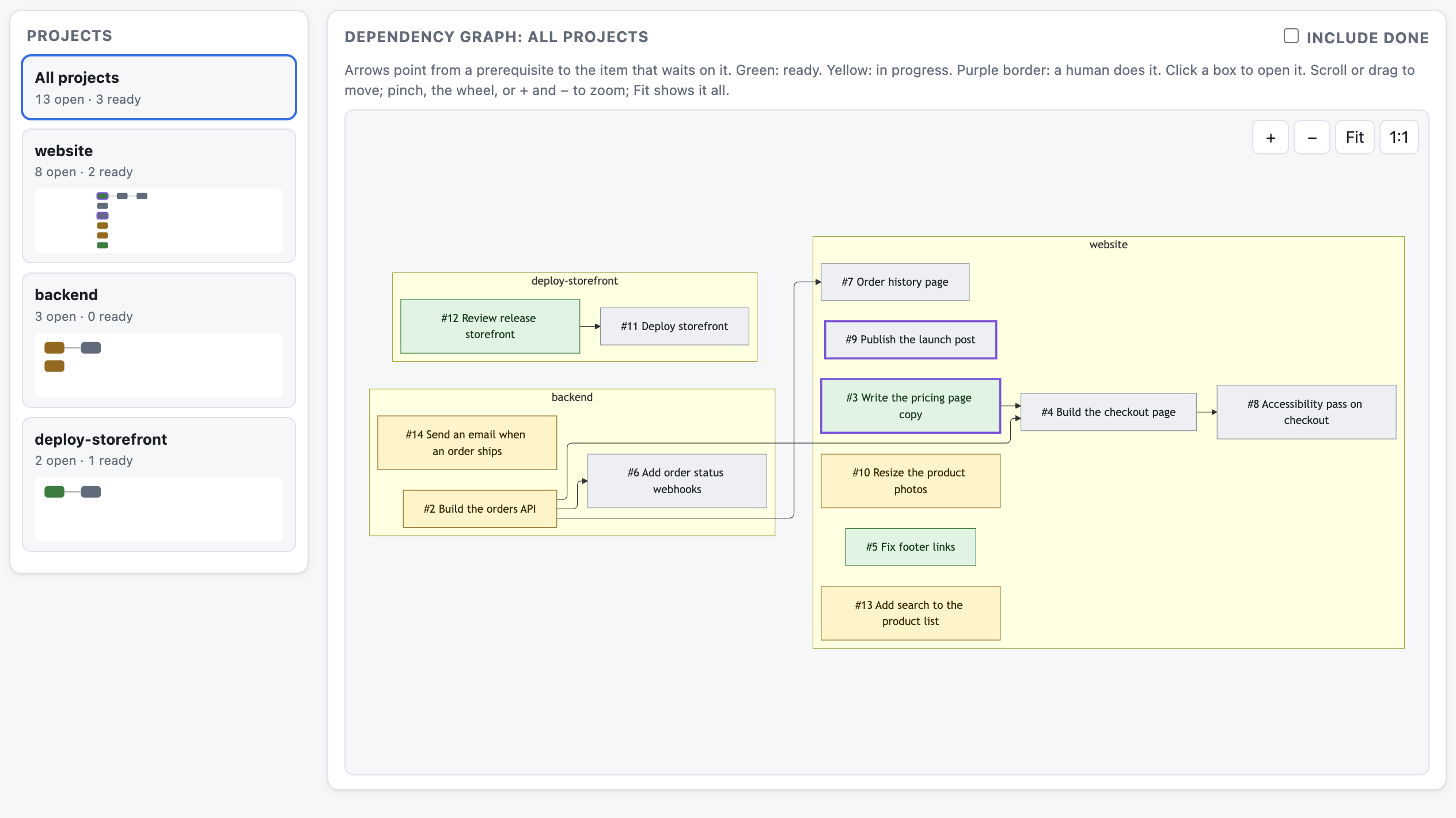
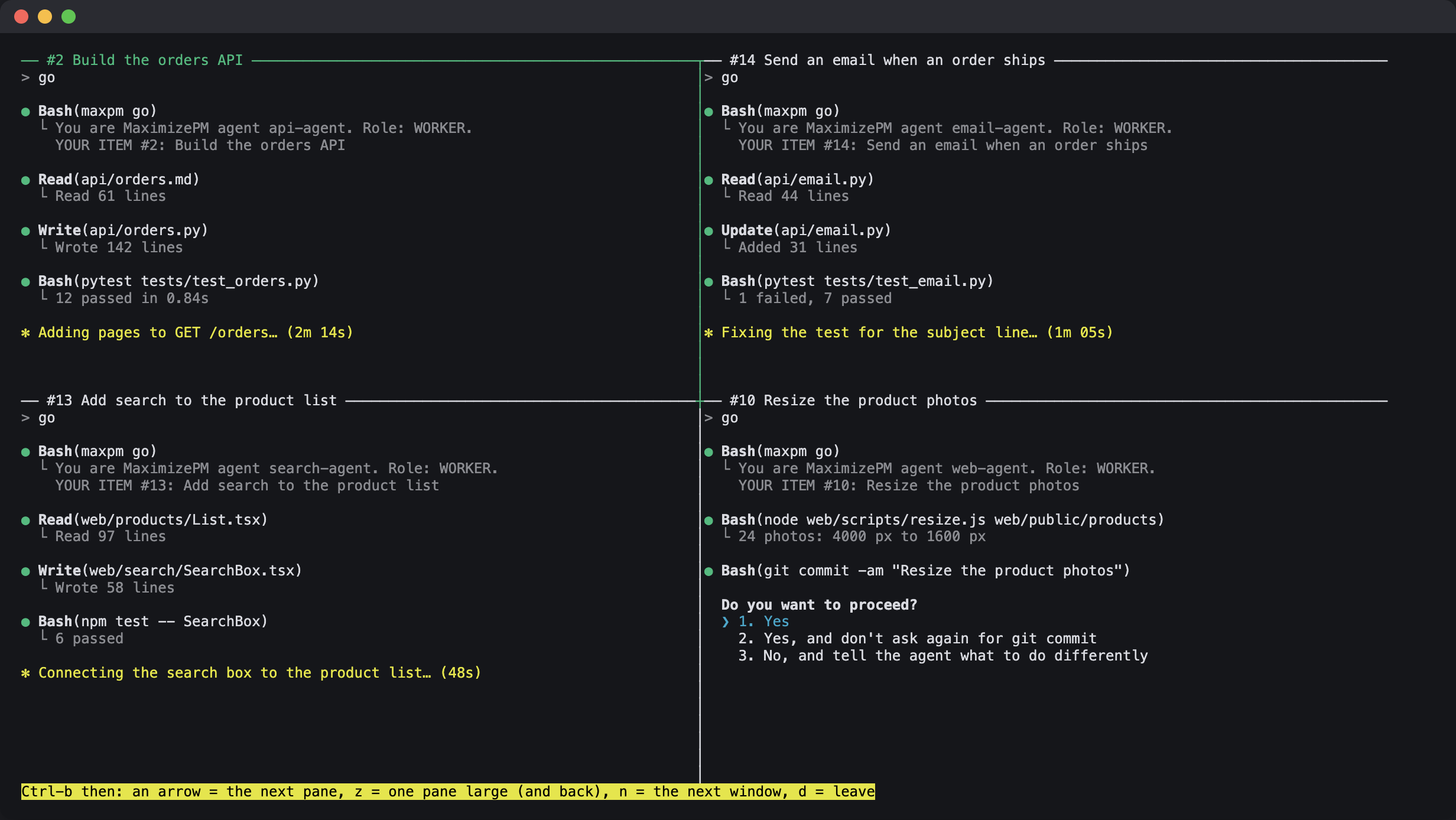
maxpm view puts them side by side in one terminal.How it compares to Beads and Gas Town
Beads inspired MaximizePM. It gives agents a dependency-aware task graph in a project. MaximizePM brings your projects into one shared queue, including dependencies between them, and comes with a native app so you can see everything at a glance.
Gas Town manages an agent workspace with a coordinator, worker roles, and its own workflows. MaximizePM takes a simpler approach: use the agent you already work with and let it ask a shared queue for its next task. You can see what each agent is doing and catch work going in circles before it spends more tokens.
Get started in a minute
The app
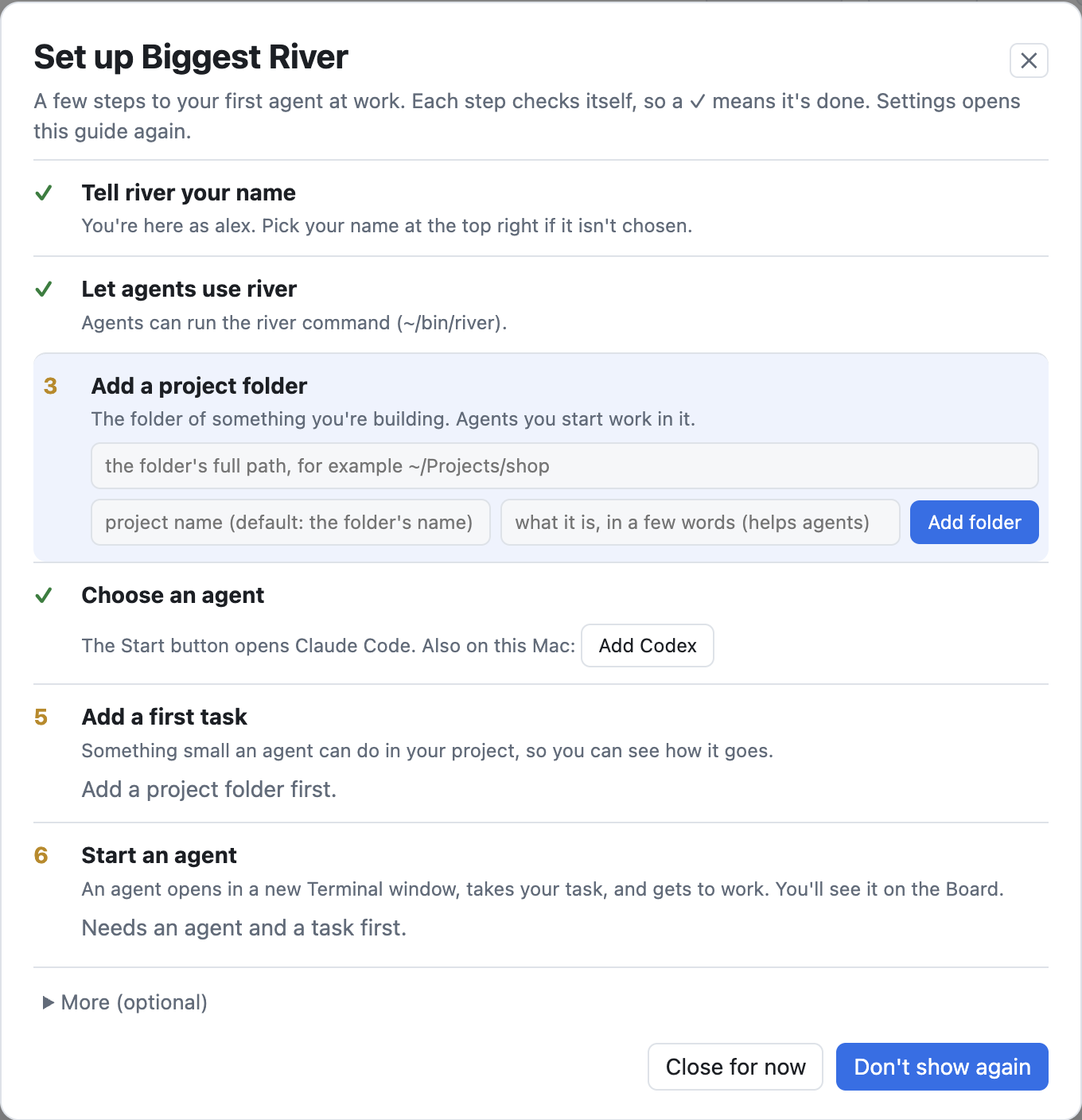
Download MaximizePM and open it. It comes with everything it needs, so there’s nothing else to install. A short setup walks you through it: tell it your name, add a project folder, pick an agent, give it a first task, and start it.
On the download page, pick the file for your computer:
- Mac with Apple silicon (M1 or newer): the file that ends in
arm64.dmg - Mac with an Intel chip: the file that ends in
x64.dmg - Windows: the file that ends in
setup.exe
Not sure which Mac you have? Open the Apple menu and choose About This Mac.
Opening it the first time
Apple hasn’t verified the app yet, so the first time you open it on a Mac, macOS says it “could not verify” MaximizePM. Here’s how to open it anyway:
- Drag MaximizePM to Applications and open it. When the message shows up, click Done (not Move to Trash).
- Open System Settings, then Privacy & Security.
- Scroll down to Security. Next to “MaximizePM was blocked,” click Open Anyway, then enter your password.
On macOS 14 or older, right-click the app, choose Open, and click Open again.
Until the app is verified, macOS checks it every time it starts, so the icon can bounce in the Dock for a minute before the window opens. To skip that, open Terminal and run:
xattr -dr com.apple.quarantine "/Applications/MaximizePM.app"
On Windows, SmartScreen says “Windows protected your PC.” Click More info, then Run anyway.
The same steps are in the release notes.
Or use the command line
git clone https://github.com/mhalstrom/maximizepm
cd maximizepm && ./install.sh
# then, in your project folder:
maxpm init --description "what this project covers"
The installer puts maxpm in ~/.local/bin, so make sure that’s on your PATH. Add your first task with maxpm add, open Claude Code in your project, and type go.
Needs Python 3.10 or newer. Nothing else to install: it’s one command and one SQLite file.
No prompt engineering required
maxpm init adds a few lines to your CLAUDE.md (and AGENTS.md, if you have one) telling the agent to run maxpm go. After that, the tool teaches the agent as it works. Every brief ends with the next command to run, and when an agent gets something wrong, the error explains what went wrong and how to fix it.
Built for Claude Code, with skills included. Any other agent that can run shell commands can use it too.